 HTrace Ambient Occlusion
Quick-start Manual
URP Setup
1. (a) Go to URP Render Data and in the Renderer Features section add HTrace AO Renderer Feature:
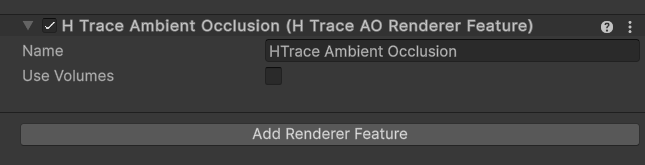
1. (b) Alternatively, this can be done via Window → HTrace → Add HTrace AO Renderer Feature to active RenderData button.
2. If you prefer to use the Volume workflow and control AO settings through a volume override, enable the Use Volumes option in the Renderer Feature. Otherwise, disable this option to control AO settings through a script attached to a GameObject.
3. (a) If you selected the Volume workflow in the previous step, go to your scene Volume and add HTrace AO override via Add Override → Lighting → HTrace: Ambient Occlusion:
.png)
Alternatively, you can tweak HTrace AO settings globally through the Project Settings → Graphics → URP → HTrace: Ambient Occlusion
3. (b) If you selected the GameObject workflow in the previous step, Right Click to open a dropdown menu and find the Rendering category. Then select HTrace Ambient Occlusion:
.png)
Alternatively, you can add HTrace AO script to any empty game object manually:
.png)
HDRP Setup
1. (a) Right click to open a dropdown menu and find the Rendering category. Then select HTrace Ambient Occlusion:
.png)
1. (b) Alternatively, you can add HTrace AO script to any empty game object:
.png)